
Run a team practice
Use this page to read toss-ups and bonuses to your team from the keyboard, so that you can watch the players instead of the page. Cloudy Reader does not time buzzes or answers. For timing, use your competition’s rules.
Prepare for practice
Section titled “Prepare for practice”Do these checks on each Mac before the team arrives:
- Install the app and let the voices download. See Get started. For several Macs, see Install, update, and uninstall.
- Choose the output device in System Settings > Sound, and set the volume there. The app has no volume control, and it plays through the default output device of the Mac.
- Read one question. The first reading after the app opens takes longer than later ones, because the app loads its name-detection model once.
- Decide on Read answer line. Select it to hear the answer after a pause of 5 seconds, or deselect it to read the answers yourself.
- Listen to hard questions first. Open Spoken script to check the words, and fix a word with a pronunciation guide. To learn how, see Fix a mispronounced word.
The app’s reading is practice material, not an official ruling.
Read toss-ups and bonuses
Section titled “Read toss-ups and bonuses”Keep Cloudy Reader and your question source open together. Read one question for each press, so that you can stop between a toss-up and its bonus.
- In your PDF viewer, copy one question. Press Command-C.
- Press Command-Tab to switch to Cloudy Reader.
- Press Command-Shift-V. Speak Clipboard replaces the question box with the clipboard text and starts the reading.
- Watch the team while the sound plays.
- Press Command-Tab to go back to the PDF for the next question.
The status bar shows “Preparing…”, then “Playing n s.” The message clears when the sound ends. You hear the header, such as “Toss-up number four.” or “Bonus number four.”, and then the question.
A paste with several questions reads straight through, with 1.5 seconds between questions. You cannot pause inside it. To stop between a toss-up and its bonus, copy and read them one at a time.
Stop and repeat on request
Section titled “Stop and repeat on request”Stop the sound when a player buzzes, and repeat a question on request. The Reading menu lists all four reading actions with their shortcuts.
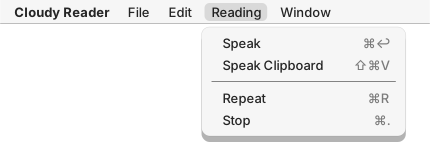
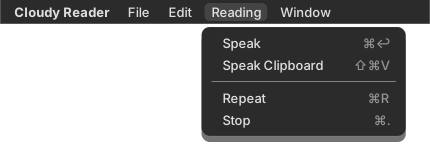
This table lists the keys and when each action is available.
| Action | Keys | Available when |
|---|---|---|
| Speak | Command-Return or Command-Enter | A voice is selected and no reading is in preparation |
| Speak Clipboard | Command-Shift-V | A voice is selected and no reading is in preparation |
| Repeat | Command-R | A reading has played and no reading is in preparation |
| Stop | Command-Period (.) | Audio is playing |
- To stop at a buzz, press Command-Period (.). The sound stops, and the status bar shows “Stopped.”
- To repeat a question, press Command-R. The app plays the last reading again from the start, in the same voice. The status bar shows “Repeating.”
- The app has no pause and no resume, so Repeat always plays the whole reading again.
- Stop works only while sound plays. While the status bar shows “Preparing…”, wait for the sound.
For every control in the window, see Main window.
Vary the voices
Section titled “Vary the voices”Rotation picks a voice each time a reading starts, so the team does not hear one voice for a whole practice. Choose a mode in Rotation:
- Round robin goes through the voices in menu order.
- Random shuffle deals the voices in random order, and no voice repeats until all have played.
- US only (random shuffle), Men only, and Women only deal from a smaller group of voices.
Some gender labels are guesses that nobody has checked by ear. Repeat keeps the voice of the last reading and does not move the rotation. A paste with several questions is read in one voice. For the steps, see Practice with voice rotation. For the groups and the exact rules, see Rotation modes.
Practice at a venue with no network
Section titled “Practice at a venue with no network”Reading works with no network once the voices are on the Mac. Prepare each Mac before you leave.
- Open Cloudy Reader on each Mac with a network connection. Keep the window open until the download label and progress bar leave the status bar. Closing the window cancels the download.
- At the venue, open the app. Reading works with no network.
Let the voices download gives the size of the first download, and Manage voices and storage shows how to check that it finished.
A name lookup that cannot reach a network fails without a message, and the reading goes on. On a network that blocks the lookup hosts or answers slowly, a reading can wait up to 2.5 seconds. To remove the network wait, deselect Online lookups, or start in offline mode. Quit the app first, then run this command in Terminal. Keep Terminal open while the app runs:
"/Applications/Cloudy Reader.app/Contents/MacOS/Cloudy Reader" --offlineOffline mode lasts until you quit the app. For the full steps, see Start in offline mode.
If the Voice menu is dimmed at the venue, the voices are not on this Mac. Connect the Mac to a network, quit the app, and open it again. The download starts at launch. See No voice is installed.