
Main window
This page lists every control in the Cloudy Reader window, when each button is available, and what the app remembers.
Window layout
Section titled “Window layout”The window uses the native macOS look and follows the light or dark appearance of the system. The figure numbers its parts from top to bottom.
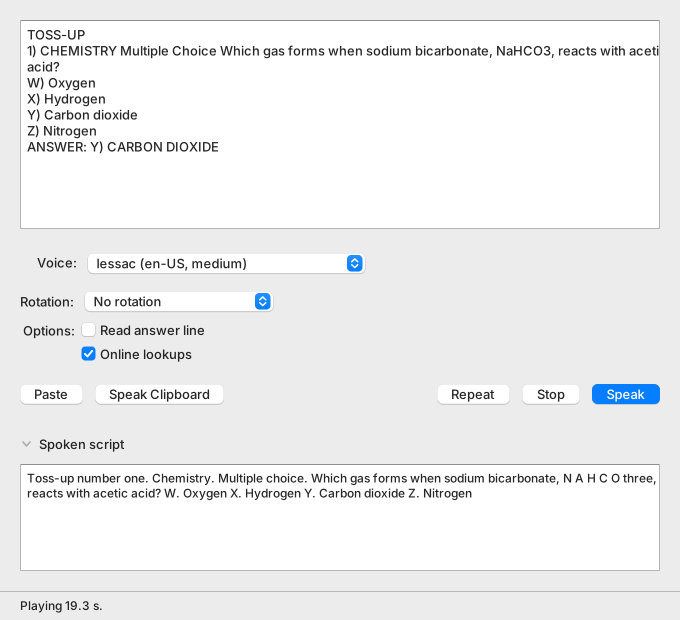
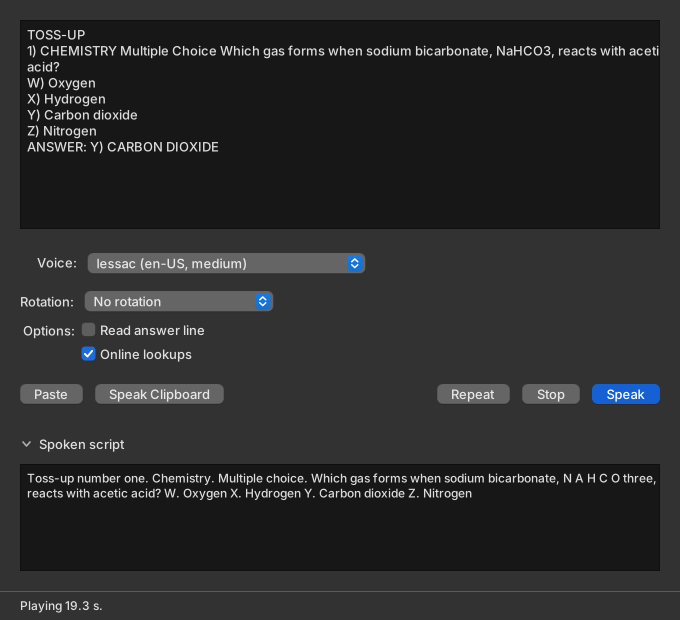
- Question box: holds the text to read.
- Voice: a pop-up menu that chooses the voice.
- Rotation: a pop-up menu that chooses how Speak picks the next voice.
- Options: the checkboxes Read answer line and Online lookups.
- Paste and Speak Clipboard: bring in the clipboard text.
- Repeat, Stop, and Speak: play a reading again, stop the sound, and start a reading.
- Spoken script: shows the words that the voice speaks.
- Status bar: shows messages, the download progress, and a busy bar.
The question box takes plain text. While it is empty, it shows the placeholder “Paste a National Science Bowl question, then press ⌘↵ to hear it.” Tab moves focus out of the box instead of typing a tab.
The window has no speed control and no volume control. Every reading uses the voice’s normal speed, and the sound plays at the macOS output volume.
Buttons and when they are available
Section titled “Buttons and when they are available”Paste and Speak Clipboard sit at the left of the button row. Repeat, Stop, and Speak sit at the right. Speak is the default button. The Reading menu commands of the same names are available under the same conditions.
| Button | What it does | Available when | Tooltip |
|---|---|---|---|
| Paste | Replaces the question with the clipboard text and moves focus to the question box. | Always. | Replace the question with the clipboard text. |
| Speak Clipboard | Replaces the question with the clipboard text, then speaks it. | A voice is selected and no reading is in preparation. | Paste the clipboard and speak it (⇧⌘V) |
| Repeat | Plays the last reading again. It does not prepare a reading. | A reading has played and no reading is in preparation. | Play the last reading again (⌘R) |
| Stop | Stops the sound. | Sound is playing. | Stop playback (⌘.) |
| Speak | Speaks the question box. | A voice is selected and no reading is in preparation. | Speak the question (⌘↵) |
Before a voice is installed, and while the app lists the voices, only Paste is available. If the clipboard holds no text, Paste and Speak Clipboard show “Clipboard is empty.” If the question box has no text, Speak shows “Paste a question first.”
A reading that becomes ready while a sound still plays replaces that sound. For the keys of each button, see Keyboard shortcuts.
Voice and Rotation menus
Section titled “Voice and Rotation menus”Voice and Rotation are pop-up menus in the window, not menus in the menu bar.
| Control | What it holds | Notes |
|---|---|---|
| Voice | The voices, under one heading for each voice engine. | The headings are labels, not choices. A voice that is not installed is dimmed and cannot be chosen. For the rows, the order, and the default voice, see Voices and rotation modes. |
| Speaker | A number box beside Voice. | It shows only for a voice with more than one speaker, and none of the supported voices has more than one. It counts from 0 and returns to 0 when you change the voice. |
| Rotation | The six rotation modes: No rotation, Round robin, Random shuffle, US only (random shuffle), Men only, and Women only. | The tooltip reads “How Speak picks the next voice.” For the rules of each mode, see Rotation modes. |
The Voice menu is dimmed in three states. It then shows one of these texts.
| Voice menu text | When it shows |
|---|---|
| Loading voices… | The app lists the voices at the start. |
| No voice installed | No voice is installed. |
| Voices unavailable | The voice list failed to load. The status bar shows an error. |
Options
Section titled “Options”Two checkboxes stand one below the other. The label Options sits to the left of the first. The app saves both choices.
| Option | Default | What it does | Tooltip |
|---|---|---|---|
| Read answer line | Cleared | Reads the answer line aloud after the question. The reading pauses for 5 seconds, then says “Answer.” and the answer. | Also read the ANSWER line aloud. |
| Online lookups | Selected | Allows the app to look up detected chemical, protein, and gene names online. The answers do not change what you hear. | Look up chemical and protein names on PubChem and UniProt. |
Clearing Online lookups is not offline mode. Offline mode also stops the voice download: see Work offline. For what a lookup sends, see Privacy. For what the app drops from an answer line, see Question format and reading order.
Spoken script
Section titled “Spoken script”The Spoken script button shows or hides a read-only view of the words that the voice receives.
| Part | Detail |
|---|---|
| Spoken script button | Shows or hides the view. The view is closed at every start, because the app does not save the open or closed state. |
| Spoken script view | Read-only. Shows the spoken script of the last reading, with the parts joined by single spaces. A word with a custom pronunciation shows as printed, and the voice receives its sounds separately. |
| Placeholder | “The words that are spoken appear here.” shows until the first reading. |
For how the app builds the script, see How a question becomes speech.
Status bar
Section titled “Status bar”The status bar sits at the bottom of the window. The figure numbers its parts while a reading is prepared during a voice download.


- Message: one message at a time.
- Download label: the voice download, as a percentage.
- Download progress bar: the same progress, as a bar.
- Busy bar: the app is working.
The table gives the place and the content of each part.
| Part | Where | What it shows |
|---|---|---|
| Message | Left | One message at a time. A warning or an error has an icon before the text. The app cuts long text with an ellipsis, and the tooltip holds the full text. |
| Download label | Right | “Downloading voices… N%” while a voice download runs. Its tooltip shows the file in progress and the megabytes done out of the total. Failed files count as done in both, so check the Voice menu for the voices that arrived. |
| Download progress bar | Right, beside the label | A bar from 0 to 100 percent for the whole download. |
| Busy bar | Far right | A bar without a percentage. It shows while the app prepares a reading and while it lists the voices. |
A warning or an error shows an icon before its text, so color never carries the meaning alone.


A message stays until a later message replaces it. These messages clear on their own.
| Message | It clears when |
|---|---|
| Loading voices… | The voice list loads. |
| No voice is installed. | A voice appears in the list. |
| Playing n s. and Repeating. | The sound ends. |
A download result shows only when the message area is empty. For every message, what it means, and what to do, see Status messages.
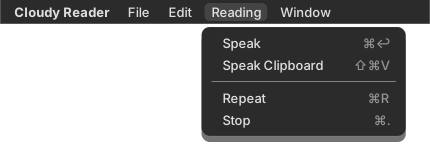
The app defines five menus: File, Edit, Reading, Window, and Help. It has no View menu and no Voice menu, and no command opens this manual. The keys of each command are in Keyboard shortcuts. The figure shows the Reading menu.
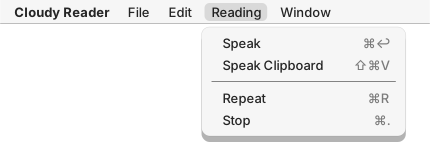
The table lists every command, the menu where the app defines it, and when it is available.
| Command | Menu | What it does | Available when |
|---|---|---|---|
| Close Window | File | Closes the window and ends the app. Playback stops, and a running voice download is cancelled. | Always. |
| Quit Cloudy Reader | File | Does the same as Close Window. | Always. |
| Undo | Edit | Undoes the last edit. | The focused field has an edit to undo. |
| Redo | Edit | Redoes the last undone edit. | The focused field has an undone edit. |
| Cut | Edit | Moves the selected text to the clipboard. | Text is selected in an editable field. |
| Copy | Edit | Copies the selected text to the clipboard. | Text is selected. |
| Paste | Edit | Inserts the clipboard text at the cursor. | The field is editable and the clipboard holds text. |
| Select All | Edit | Selects all the text in the field. | The field is not empty. |
| Speak | Reading | Same as the Speak button. | As the button. |
| Speak Clipboard | Reading | Same as the Speak Clipboard button. | As the button. |
| Repeat | Reading | Same as the Repeat button. | As the button. |
| Stop | Reading | Same as the Stop button. | As the button. |
| Minimize | Window | Minimizes the window. | Always. |
| Zoom | Window | Switches the window between the maximized and the normal size. | Always. |
| About Cloudy Reader | Help | Opens the About box. | Always. |
The Edit commands act on the question box, the Spoken script view, or the Speaker box, whichever has focus. With focus on any other control, all six are dimmed. The Spoken script view is read-only, so only Copy and Select All can act there. The Paste command in the Edit menu inserts the clipboard text at the cursor, while the Paste button replaces the whole question.
What the app remembers
Section titled “What the app remembers”The app has no settings window. It saves four choices and restores them at the next start.
| Saved choice | Saved when | At the next start |
|---|---|---|
| Voice | You choose a voice. | The saved voice, if it is installed. Otherwise the first installed voice in the menu. |
| Rotation mode | You choose a mode. | The saved mode. |
| Read answer line | You select or clear it. | The saved state. |
| Online lookups | You select or clear it. | The saved state. |
The app does not save the Speaker number, the rotation deck and the last voice used, or whether the Spoken script view is open. The key names are in Files, settings, and limits. To clear the saved choices, see Reset the app.
About Cloudy Reader
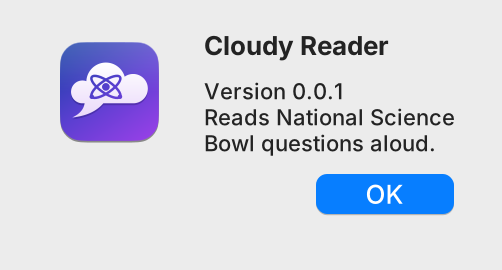
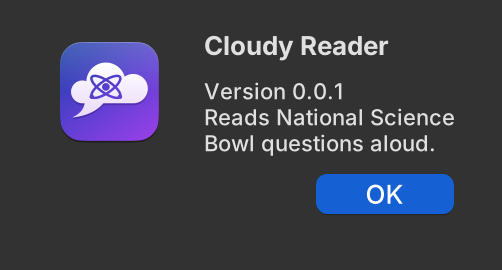
Section titled “About Cloudy Reader”The About box shows the app icon, the name, the version, and a one-line description.
| Item | Detail |
|---|---|
| Opens with | The About Cloudy Reader command. |
| Text | “Cloudy Reader”, then “Version 0.0.1”, then “Reads National Science Bowl questions aloud.” |
| Button | OK closes the box. |
| Behavior | The box does not block the main window. One About box opens at a time, and choosing the command again brings the open box to the front. |
Window size
Section titled “Window size”The window has a default size and a minimum size.
| Size | Width by height |
|---|---|
| Default | 680 by 620 |
| Minimum | 560 by 480 |