Open the app the first time
macOS blocks Cloudy Reader the first time you open it. The app has an ad-hoc signature, which uses no Apple Developer ID, and it is not notarized. macOS flags a downloaded copy as quarantined. Gatekeeper, the macOS check for downloaded apps, then blocks the first launch and says that it cannot verify the app.
Use this page to approve the app once, to find a missing Open Anyway button, and to check that the app is intact.
Approve the app
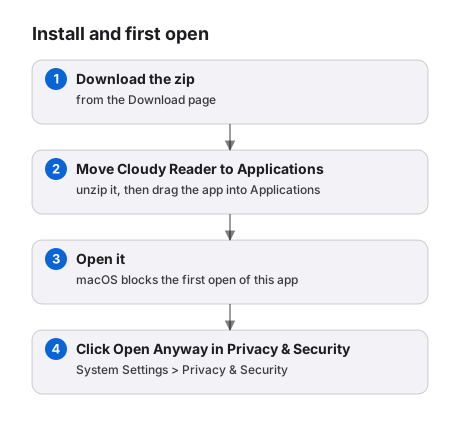
Section titled “Approve the app”Approve the app only after you check the download. See Download Cloudy Reader.
- Open Cloudy Reader once from the Applications folder. Close the warning dialog, and do not move the app to the Trash.
- Open System Settings > Privacy & Security.
- Scroll to Security. Find the message about Cloudy Reader.
- Click Open Anyway. Confirm with your password or Touch ID. If you use a standard account, an administrator must enter a name and password instead.
- Open Cloudy Reader again. A second dialog appears: click Open.
The Cloudy Reader window opens. You approve the app once.
Next, let the voices download. See Let the voices download.
If Open Anyway is missing
Section titled “If Open Anyway is missing”Start with these two cases.
Open the app again
Section titled “Open the app again”macOS shows Open Anyway only after a blocked attempt. Ask macOS to block the app again:
- Open Cloudy Reader again, then close the warning dialog.
- Go back to System Settings > Privacy & Security at once, and scroll to Security.
- Click Open Anyway.
Ask the administrator
Section titled “Ask the administrator”On a Mac that a school or an employer manages, ask the administrator to approve Cloudy Reader. Do not work around the policy.
Give the administrator the bundle identifier, com.cloudyreader.CloudyReader, the Security and code signing page, and the SHA-256 on Download Cloudy Reader.
For other causes, see Open Anyway is missing.
Check that the app is intact
Section titled “Check that the app is intact”Run this check when macOS says that Cloudy Reader is damaged. Run it also to confirm that no file inside the app changed after signing. For the message itself, see macOS says the app is damaged.
Do not edit files inside the app. Any change breaks the signature. Run this command in Terminal:
codesign --verify --deep --strict --verbose=2 "/Applications/Cloudy Reader.app"echo $?The command prints one --prepared: line and one --validated: line for each code file in the app. When the files match the signature, the last lines are:
/Applications/Cloudy Reader.app: valid on disk/Applications/Cloudy Reader.app: satisfies its Designated Requirement0The last line, 0, is the exit code. If a file changed, the output includes a sealed resource is missing or invalid and a file modified: line that names the file, and the exit code is 1. In that case:
- Move the app to the Trash.
- Download Cloudy Reader again and check its SHA-256. See Download Cloudy Reader.
- Install the app again. See Install, update, and uninstall.
- Run the check again.
If the check fails again and the SHA-256 matched, see Report a problem.
Remove the quarantine flag
Section titled “Remove the quarantine flag”This step is for advanced users. It replaces the approval in Privacy & Security.
The option -d deletes the flag, and -r applies the command to every file inside the app. Then open Cloudy Reader. Gatekeeper no longer blocks the first launch.