Voices and rotation
Cloudy Reader has two voice engines and 33 pinned English voices. This page lists the voices, explains each rotation mode, and describes the background download.
Compare the engines
| Piper | Kokoro | |
|---|---|---|
| Pinned voices | 5 | 28 |
| Runs on | Any Mac that runs the app | Apple Silicon only |
| Size | About 63 MB per voice | About 342 MB for the model and all 28 voices |
| Voice names | Come from the voice file name, for example lessac |
Come from the voice id, for example Heart (female) |
| Languages | en-US and en-GB | en-US and en-GB |
| Quality label | The quality in the voice file, for example medium |
A letter grade from the model’s VOICES.md, for example A |
Kokoro voices appear only when the Kokoro engine can run. It needs an Apple Silicon Mac and its Python packages. It also needs model files whose SHA-256 values match the pinned values. See Troubleshooting.
The 5 pinned Piper voices
| Voice file | Language | Gender used by rotation |
|---|---|---|
en_US-lessac-medium |
en-US | Female |
en_US-amy-medium |
en-US | Female |
en_US-ryan-medium |
en-US | Male |
en_GB-alan-medium |
en-GB | Male |
en_GB-jenny_dioco-medium |
en-GB | Female |
The project took these genders from upstream and has not checked them by ear. A Piper voice outside this table never rotates.
The 28 pinned Kokoro voices
The first letter of a voice id gives the accent: a is en-US and b is en-GB. The second letter gives the gender: f is female and m is male. The grade comes from the model’s VOICES.md.
| Group | Voices (grade) |
|---|---|
| US female (11) | af_heart (A), af_bella (A-), af_nicole (B-), af_aoede (C+), af_kore (C+), af_sarah (C+), af_alloy (C), af_nova (C), af_sky (C-), af_jessica (D), af_river (D) |
| US male (9) | am_fenrir (C+), am_michael (C+), am_puck (C+), am_echo (D), am_eric (D), am_liam (D), am_onyx (D), am_santa (D-), am_adam (F+) |
| UK female (4) | bf_emma (B-), bf_isabella (C), bf_alice (D), bf_lily (D) |
| UK male (4) | bm_fable (C), bm_george (C), bm_lewis (D+), bm_daniel (D) |
Inside Kokoro, the menu lists the best grade first. Voices with the same grade sort by name. The list starts with af_heart (A), af_bella (A-), bf_emma (B-), and af_nicole (B-).
Choose a voice
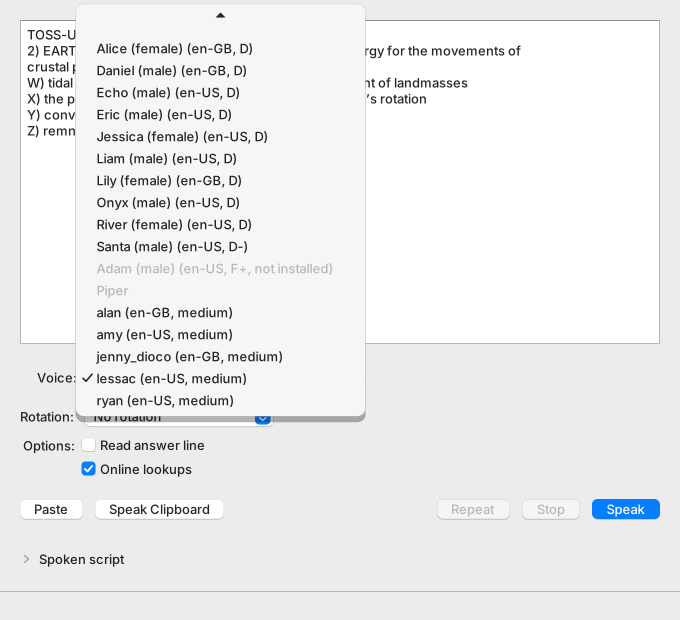
Open Voice. The headings Kokoro and Piper are labels, not choices. The menu lists Kokoro first. Inside an engine, the best grade or quality tier comes first, then the name.
- A row reads name (language, quality). Examples:
lessac (en-US, medium)andHeart (female) (en-US, A). - The five pinned Piper voices are all
medium, so they list by name:alan,amy,jenny_dioco,lessac, andryan. - A voice that is listed but not installed carries the words “not installed”. It is dimmed, and you cannot pick it.
- With no installed voice, the menu is dimmed and its placeholder reads “No voice installed”.
- While the list loads, the placeholder reads “Loading voices…”. If the list fails, it reads “Voices unavailable”.
- The Speaker box appears for a voice whose file lists more than one speaker. It counts from 0 and resets to 0 when you change the voice.
The app remembers your choice. At the next start it selects the saved voice. With no saved voice, or if that voice is gone, it selects the best installed voice. That is the first installed row in the menu.
Until you choose a voice, a finished download can move the selection to a better voice.
Rotate voices
Rotation chooses how Speak and Speak Clipboard pick a voice. The app keeps the mode between runs.
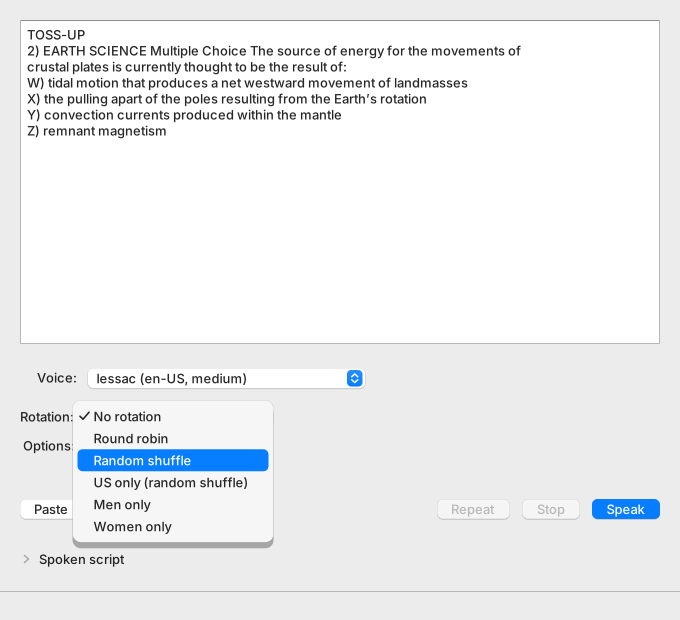
| Mode | The next voice is |
|---|---|
| No rotation | The voice in Voice, with its speaker. |
| Round robin | The voice after the last one used, in menu order. After the last voice, the first one. |
| Random shuffle | The next voice from a shuffled deck of all qualifying voices. |
| US only (random shuffle) | The same deck, limited to en-US voices. |
| Men only | The same deck, limited to male voices. |
| Women only | The same deck, limited to female voices. |
With all 33 voices installed, Random shuffle deals from 33 voices. US only uses 23, Men only uses 15, and Women only uses 18.
Know which voices qualify
A voice joins the pool when it meets all four conditions:
- It is installed.
- Its file lists exactly one speaker.
- It is an English voice with a known gender. Kokoro voices qualify by id. Piper voices qualify only if they are one of the five in the table above.
- It fits the mode. US only needs en-US. Men only needs male. Women only needs female.
The pool follows the order of the Voice menu: Kokoro voices, best grade first, then Piper voices by name. A repeated voice counts once. The pool is rebuilt from the latest voice list, so a finished download changes it.
Know how each mode picks
- Round robin takes the voice after the last one used. Without a last voice, or if the last voice left the pool, it takes the first voice of the pool.
- The shuffle modes build a deck: all pool voices in random order. Each reading takes the next voice. The deck must run empty before any voice repeats.
- A new deck never opens with the voice used last, if the pool has two or more voices.
- A voice that leaves the pool drops out of the current deck. A new voice joins only when the next deck is built.
Know when rotation advances
- Rotation advances when a reading starts, after every check passes. A voice must be available, no reading may be in progress, and the box must have text. A reading that fails later still used its voice.
- Repeat does not advance rotation. It replays the stored audio, so it keeps the voice of the last reading.
- A new mode drops the current deck but keeps the last voice used. Round robin then continues after that voice.
- The deck and the last voice live in memory only. They are gone when you quit. The mode is saved.
- Voice and Speaker stay as you set them. Rotation uses single-speaker voices, so it never uses a Speaker number.
- The status bar names the voice that rotation used. Example: “Preparing with lessac (female)…”, then “Playing 4.2 s with lessac (female).”
Handle an empty pool
If no installed voice fits the mode, the reading uses the voice and speaker you chose in Voice. The status bar shows a warning. The warning stays after the sound ends.
No installed voice matches “Men only”; using the selected voice.
The text names the mode that found no voice. This happens, for example, when only one Piper voice is installed and the mode excludes it.
Know where voices come from
| Source | How the voice gets to your Mac |
|---|---|
| A built app | The app carries the voices it was built with. On every start it links them into the voices and models folders of your data folder. |
| The background download | The app downloads missing pinned voices. See the next section. |
| Your own files | You copy files into the voices folder. See “Add a Piper voice by hand”. |
make voices and make kokoro |
A source checkout fetches the pinned files into .data. |
For the make targets, see Build the app.
The data folder is ~/Library/Application Support/cloudyreader. The variable CLOUDYREADER_DATA_DIR replaces it.
Download missing voices

Know when it runs
- The download starts once per window, right after the first voice list finishes loading. It starts even if the list failed.
- It runs on its own background thread. You can read while it works.
- Offline mode stops it. The app then sends no request and creates no folder. See Offline and privacy.
Know what it fetches
The download follows the pinned list assets.lock.json. A built app reads the copy inside its bundle. A source run reads the copy in the checkout.
- It fetches only files that are missing. A file that is present and has the pinned size counts as installed. The app does not hash it again.
- A file that is present with another size is a conflict. The download leaves it alone and never overwrites it.
- The order is: Piper configs, Piper models, the Kokoro config, the Kokoro model, then the Kokoro voices. A Piper voice appears only after its model file lands.
- It skips the Kokoro files when this Mac cannot run Kokoro. This saves about 342 MB.
- It never downloads the science (NER) model.
- The Piper voices total about 316 MB. The Kokoro files total about 342 MB.
Know how it protects your Mac
- It uses HTTPS only. It follows at most 5 redirects and checks that each one is HTTPS.
- It accepts only data file types:
.onnx,.json, and.safetensors. It never fetches pickle-style files. - It checks the announced length, the byte count, and the pinned SHA-256 value of every file.
- It writes into a private
.prefetchfolder inside your data folder. It moves a file into place only after the checks pass. - At the start of a run, it removes leftover
.partfiles that are older than 24 hours. - It refuses to write into any folder inside an app bundle.
- A network error, HTTP 429, HTTP 5xx, or a short download makes it try the file again. It makes 3 tries in all, with waits of 2 seconds, then 4 seconds.
- Any other failure stops that file at once. Examples are a hash mismatch and an HTTP 404.
- The log masks URLs.
Know what you see
- The status bar shows “Downloading voices… N%”. The percent counts the bytes of all files. Hover over the text to see the file in progress and the MB done so far for the whole download.
- When a file lands and no voice is available yet, the Voice menu refreshes so you can read at once. Otherwise the menu refreshes when a run ends with at least one new file.
- The run ends with “Voices downloaded.” or with a warning. The warning reads “Some voices could not be downloaded. They are tried again at the next start.” The tooltip names the failed files.
- Closing the window cancels the download at the next data chunk. It reports nothing.
Add a Piper voice by hand
- Quit the app.
- Copy the voice file
<name>.onnxand its config<name>.onnx.jsoninto thevoicesfolder of your data folder. - Start the app. The voice appears under Piper.
The app lists a voice only when both files exist. It does not re-read voice files while it runs, so restart it to pick up a replaced file. The app also lists voices in other languages, but its pronunciation rules target English. A hand-added voice never rotates, because rotation needs a known gender.
To remove a hand-added voice, quit the app and delete its two files. Deleting a pinned voice removes nothing for good. At every start, the download fetches each missing pinned file again, unless offline mode is on. A built app also links its bundled voices again at the next start.