Use the app
This page explains every control in the Cloudy Reader window and what each status message means.
Tour the window
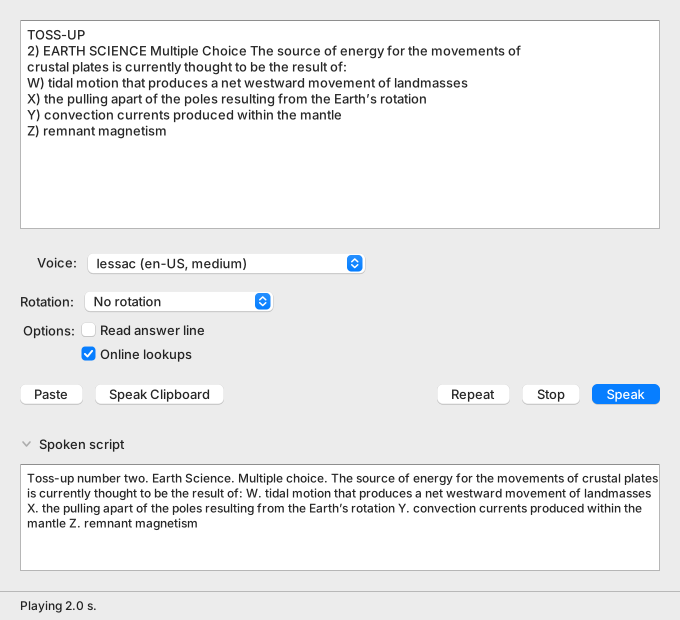
The window opens at 680 by 620 points. The smallest size is 560 by 480 points. The app saves the size and position when you close the window. It restores them at the next start.
| Control | What it does |
|---|---|
| Question box | Holds the text to read. Paste or type here. The placeholder names the Speak shortcut. Tab leaves the box. |
| Voice | Chooses the voice. The headings Piper and Kokoro group the voices. A Speaker box appears only for a voice with more than one speaker. |
| Rotation | Chooses how Speak picks the next voice. |
| Read answer line | Reads the answer after the question. Off by default. |
| Online lookups | Allows name lookups at PubChem and UniProt. On by default. |
| Paste | Replaces the question with the clipboard text. |
| Speak Clipboard | Replaces the question with the clipboard text and reads it at once. |
| Repeat | Plays the last audio again. |
| Stop | Stops the sound. |
| Speak | Reads the question box. This is the default button. |
| Spoken script | Shows or hides the words that the voice speaks. The view is empty until the first reading. |
| Status bar | Shows messages, the download progress, and a busy bar. |
For the rotation modes, see Voices and rotation.
Read a question
- Paste the question into the box.
- Choose a voice, or choose a rotation mode.
- Press Speak or Cmd+Return.
- Wait while the status bar shows “Preparing…”. The first reading after a start can take longer.
- Listen. Press Stop to end the sound early.
The app prepares one reading at a time. Speak and Speak Clipboard stay dimmed while a reading is in preparation. If audio still plays when the next reading is ready, the new audio replaces it.
The box accepts more than one question. Paste a whole round and the app reads each question in order. The text needs no header, number, or category. Plain text such as “Which gas is released when NaHCO3 reacts with acetic acid?” reads fine.
Repeat plays the stored audio again. It does not prepare a new reading, so it keeps the voice and the rotation state.
Know which buttons are enabled
| Button | Enabled when |
|---|---|
| Paste | Always. |
| Speak and Speak Clipboard | A voice is selected and no reading is in preparation. |
| Repeat | A reading has played and no reading is in preparation. |
| Stop | Audio is playing. |
Hear the answer too
Turn on Read answer line. The app then adds a pause of 5 seconds after the last choice or stem. Then it says “Answer.” and the answer text.
- The app drops judge notes, such as
(ACCEPT: …)andPROMPT:. It reads only the primary answer. - A multiple-choice answer such as
X) 2-methylpropan-1-olis read as “X. 2-methylpropan-1-ol.” - An answer in all capitals is read in title case.
MITOCHONDRIAL MATRIXbecomes “Mitochondrial Matrix.”
Know how a reading is built
Each part of a question becomes a segment. A choice becomes two segments: its letter and its text. The app adds a silent pause after most segments.
| Part | What is spoken | Pause after |
|---|---|---|
| Header | “Toss-up number two.”, “Bonus number twelve.”, or “Question number five.” With no number, “Toss-up.” or “Bonus.” | 400 ms |
| Category | The category in title case, for example “Earth Science.” | 300 ms |
| Format | “Multiple choice.” or “Short answer.” | 500 ms |
| Stem | The question text | 700 ms if choices follow, else none |
| Choice letter | “W.”, “X.”, “Y.”, or “Z.” | 300 ms |
| Choice text | The text of the choice | 400 ms |
| Answer | “Answer.” and the answer text | 5000 ms before it |
| End of a question | Nothing | 1500 ms before the next question |
The app skips a part that the pasted text does not have. A paste without a number or a header has no header segment. A choice with no text gets one pause of 400 ms after its letter.
The app inserts each pause as exact silence in the audio file. Every voice engine writes it the same way. The spoken words stay the same.
A voice can add its own silence around a line. A Kokoro voice wraps each line in about 0.4 s of near silence. A pause between two Kokoro lines therefore runs about 0.8 s longer than the table says.
The app cuts that silence next to a choice letter. The pause after a letter then lasts about 0.3 to 0.4 s.
The audio cache key includes the pauses. After an update that changes a pause, the app renders a question that you heard before once more.
Use the menus and shortcuts
Cmd is the Command key.
| Action | Menu | Shortcut |
|---|---|---|
| Speak | Reading | Cmd+Return or Cmd+Enter |
| Speak Clipboard | Reading | Cmd+Shift+V |
| Repeat | Reading | Cmd+R |
| Stop | Reading | Cmd+. (period) |
| Close Window | File | Cmd+W |
| Minimize | Window | Cmd+M |
| Zoom | Window | None |
| Undo | Edit | Cmd+Z |
| Redo | Edit | Shift+Cmd+Z |
| Cut | Edit | Cmd+X |
| Copy | Edit | Cmd+C |
| Paste | Edit | Cmd+V |
| Select All | Edit | Cmd+A |
| About Cloudy Reader | Cloudy Reader | None |
| Quit Cloudy Reader | Cloudy Reader | Cmd+Q |
The Edit commands act on the text field that has focus. A command is dimmed when it cannot act, for example Cut without a selection. macOS moves About and Quit into the application menu. The Help menu then stays empty, and macOS hides it.
Closing the window ends the app. The sound stops, and the app cancels a running voice download.
Read the status bar
The status bar shows one message at a time. A warning or an error also shows a system alert icon. The text names the problem, so color is never the only cue. While voices download, a label and a progress bar sit at the right of the message. Hover over the bar to see the full message.
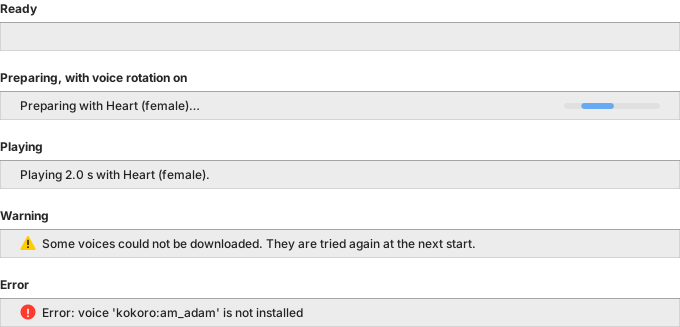
| Message | When it appears | Tone |
|---|---|---|
| Loading voices… | The app lists the installed voices at start. | Information |
| No voice is installed. | The voice list finishes loading and holds no installed voice. | Warning |
| Paste a question first. | You press Speak with an empty box. | Information |
| Clipboard is empty. | Paste or Speak Clipboard found no text. | Information |
| Preparing… | A reading is in preparation. A busy bar shows at the right. | Information |
| Preparing with voice… | Rotation picked voice. The text shows its name and gender. | Information |
| No installed voice matches “mode”; using the selected voice. | Rotation found no voice. The reading uses the voice in Voice. | Warning |
| Playing n s. | Audio starts. With rotation: “Playing n s with voice.” | Information |
| Repeating. | You pressed Repeat. | Information |
| Stopped. | You pressed Stop. | Information |
| Warning: text | The reading has one pronunciation or engine warning. It replaces “Playing”. | Warning |
| n warnings: text; text | The reading has several warnings. | Warning |
| Error: first line | A step failed. The tooltip holds the whole message. | Error |
| Downloading voices… N% | A voice download runs. A progress bar sits beside the text. | Information |
| Voices downloaded. | A download finished, and no other message was showing. | Information |
| Some voices could not be downloaded. They are tried again at the next start. | A download ended with failures. The tooltip lists the files. | Warning |
“Playing …” and “Repeating.” clear when the sound ends. “Loading voices…” clears when the list loads. “No voice is installed.” clears when a voice appears. The other messages stay until a newer message replaces them. A download result never replaces a message that is already showing.
A busy bar sits at the far right of the status bar. It shows while the app prepares a reading or loads the voice list. The download bar sits to its left.
Read the spoken script
Click Spoken script to open the view. It shows the words sent to the voice after the app has turned formulas, units, and symbols into words. A word with a custom pronunciation shows as it was printed. The voice receives the sounds separately. See Pronunciation.
Open the About box
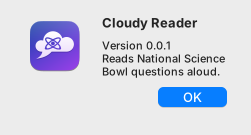
Choose About Cloudy Reader in the application menu. The box shows the icon, the name, the version, and the line “Reads National Science Bowl questions aloud.” It does not block the window.
Know what the app remembers
The app saves these choices and restores them at the next start. They are the voice, the rotation mode, Read answer line, Online lookups, and the window size and position. The key names are in Settings and command line.
Use the app with a screen reader
The controls carry accessible names: Question, Voice, Speaker, Voice rotation, Spoken script, Downloading voices, and Preparing. The app announces an error to assistive technology as soon as the error appears.